Step-by-step guide · Android
How to set up a truck profile in NavigateTRK
The profile tells the route planner about your vehicle. Enter details for the truck or vehicle combination you are driving and review them when you change trailers or loads.
Before you start
Have the vehicle height, width, total length, weight and axle load ready. Use verified values for your own vehicle, not example values from another truck. Make changes while parked.
Tablet recording · 28 sec · English captions · no audio
Truck profile: reviewing vehicle parameters
Tablet recording of NavigateTRK 0.16.170: opening the height field, dimensions, weight, axle load and ADR. Do not copy the displayed values; vehicle parameters were not changed in this demonstration. The app interface is Russian; the explanations are in English.
Open video in a new tab ↗Open the truck profile
Go to the truck profile screen, labelled «Профиль грузовика» in the Russian interface. Tap the vehicle name if you want to change it; a clear name helps identify the saved setup.
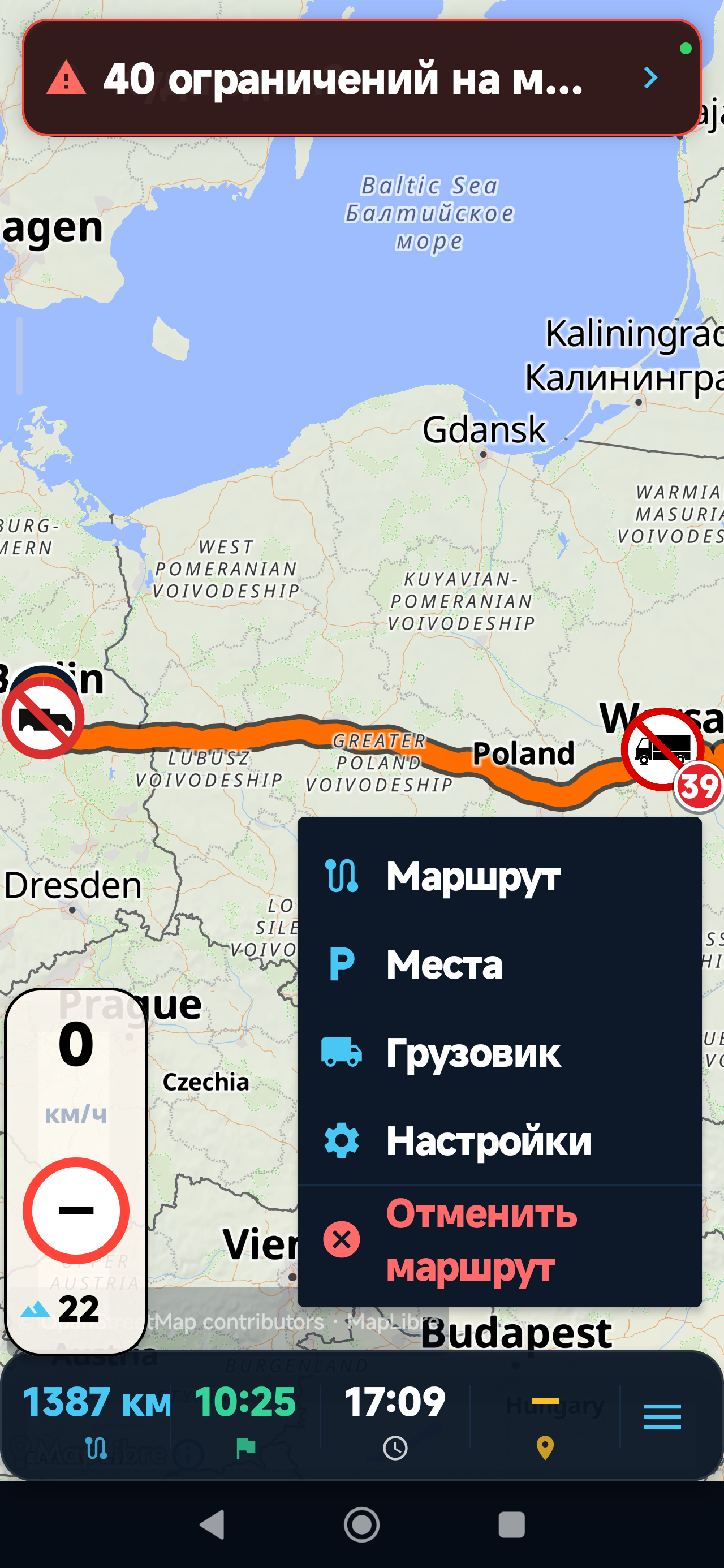
App screenshotChoose «Грузовик» (Truck) in the map menu to open vehicle settings. This capture shows the menu position in an earlier Russian-language interface.Enlarge screenshot ↗ Enter dimensions in metres
Open the height, width and length fields in turn and enter the dimensions of your current vehicle or combination. Decimal values can use a dot or comma. Check the units: metres, not centimetres.
Enter weight and axle load
Fill in the weight and axle-load fields in tonnes. These are different values: axle load is not total vehicle weight. Use verified information for the current load.
Review the ADR switch
Set the ADR / hazardous-load switch to match the trip. It passes a hazardous-load flag to the route planner; that one switch does not describe every condition or restriction affecting a shipment.
Save the profile
Press «Сохранить профиль» (Save profile) and wait for «Сохранено» (Saved). If saving is disabled, correct the value identified by the validation message. Axle load, for example, cannot exceed total weight.
Plan a route with the current profile
Return to route planning, enter the destination and review the suggested route. Rebuild the route after changing vehicle settings. Check the final approach and visible restrictions before setting off.
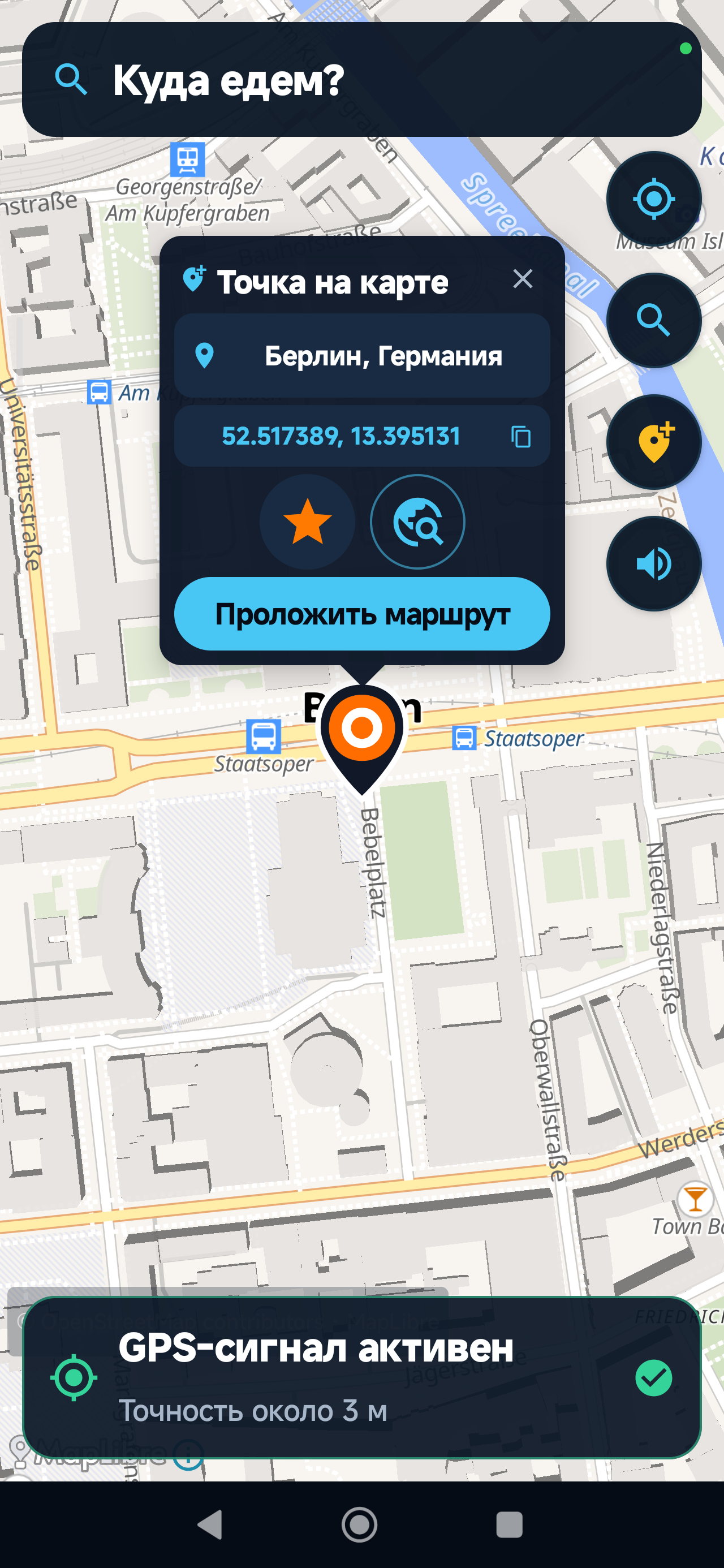
App screenshotExample destination: central Berlin. Check the pin and tap «Проложить маршрут» (Plan route). Use your own destination and truck parameters. The screenshot interface is Russian.Enlarge screenshot ↗
Check the result
Before departure, confirm that the profile shows your current vehicle parameters and that they have been saved.
Common questions
Why can’t I save the profile?
The screen validates numeric values and supported ranges. Remove extra characters, check the units and read the validation message. Do not enter smaller, inaccurate dimensions just to make the form accept them.
Does a profile guarantee clearance under every bridge?
No. Routes depend on available road data. A vehicle profile helps account for restrictions, but road signs and actual conditions take priority.
Should I update it after loading?
Review weight and axle load, and check dimensions after a trailer change. A saved profile does not measure the vehicle automatically.
Troubleshooting: symptom, check, next step
Change one setting at a time and repeat the same short test. This makes it easier to tell which change helped. Configure the device while parked.
The route ends at the wrong entrance
Zoom in on the destination and compare it with the confirmed truck entrance. Ask the sender for the gate coordinates. Correct the destination and calculate the route before driving rather than trying to reach the office entrance.
The route looks unchanged after switching vehicles
Open the saved profile and check every field and its units. Save changes and calculate again. An identical route alone does not prove a fault: the available roads may have no restrictions affected by the changed parameters.
The current location cannot be found
Check Android location settings and the app permission. Wait for the map position to update in an open area. If it remains stale, compare location behaviour in another app to distinguish a device issue from an app-specific issue.
Reporting an incorrect restriction
Once safely parked, note the road coordinates, travel direction and restriction type. Include the profile parameters and expected result. Only photograph signs when safe; hide other people’s faces and registration plates.
Still need help?
Include the app version, device model, profile parameters and the start and end of the affected section. Do not send customer addresses or your complete travel history unless needed to reproduce the issue.
Never send passwords, access codes or payment details.
Troubleshooting notes updated: 9 October 2026. Screens and labels may differ by app version.
This guide follows the verified truck-profile screen. Menu positions may differ between app versions; Russian labels are included where relevant.
Photos and screens
 Enlarge
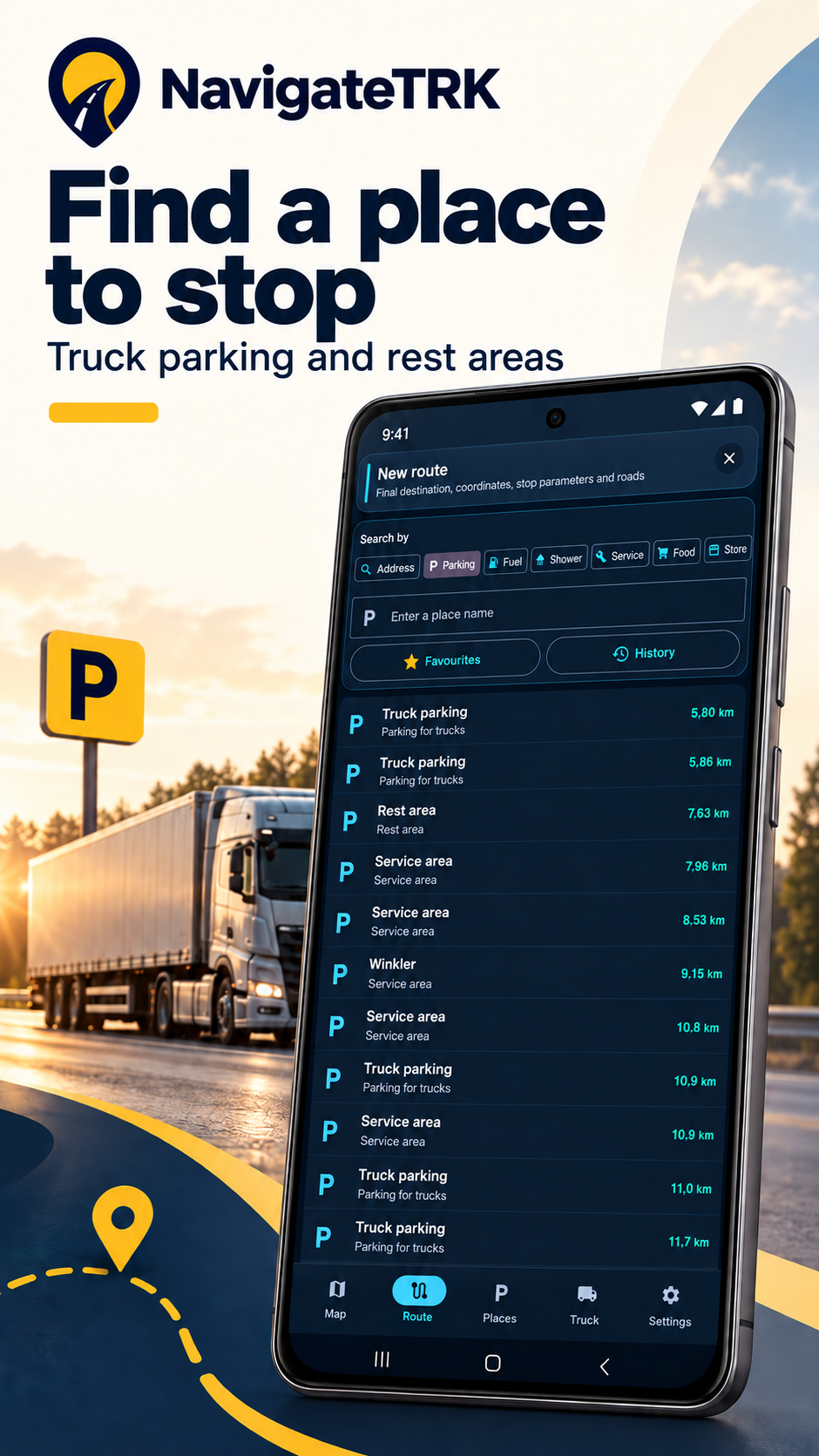
 Gallery from the artwork submitted to Google Play on 4 October 2026. These promotional images were created and edited with AI using app screens; they are not direct captures of the current version. Interface details may differ. The video is a separate, earlier promo with a Russian interface.