Step-by-step guide · Android
How to set up NavigateTRK Car Launcher
NavigateTRK Launcher brings app shortcuts and driving instruments together on your Android home screen. Choose a layout, assign the apps you need and test each shortcut.
Before you start
Install the apps you want to open from the dashboard, such as navigation and music players. The launcher opens them; it does not install them automatically. Configure the screen while parked.
Tablet recording · 26 sec · English captions · no audio
Layout, language and app count
Launcher 1.9.4 settings walkthrough: appearance layouts, scrolling to Quick setup, language and the Save button. MAX 6 was already selected; settings were not changed. The app interface is Russian; the explanations are in English.
Open video in a new tab ↗Open settings and select a language
Open Settings / Control panel, find Language and select Russian or English. This makes the labels and the remaining setup easier to follow.
Choose a layout
Select a layout in the appearance section. Tile count and placement depend on the design; MAX 6 supports a choice of 6 or 8 tiles. Choose a layout with labels and buttons that are easy for you to read and use.
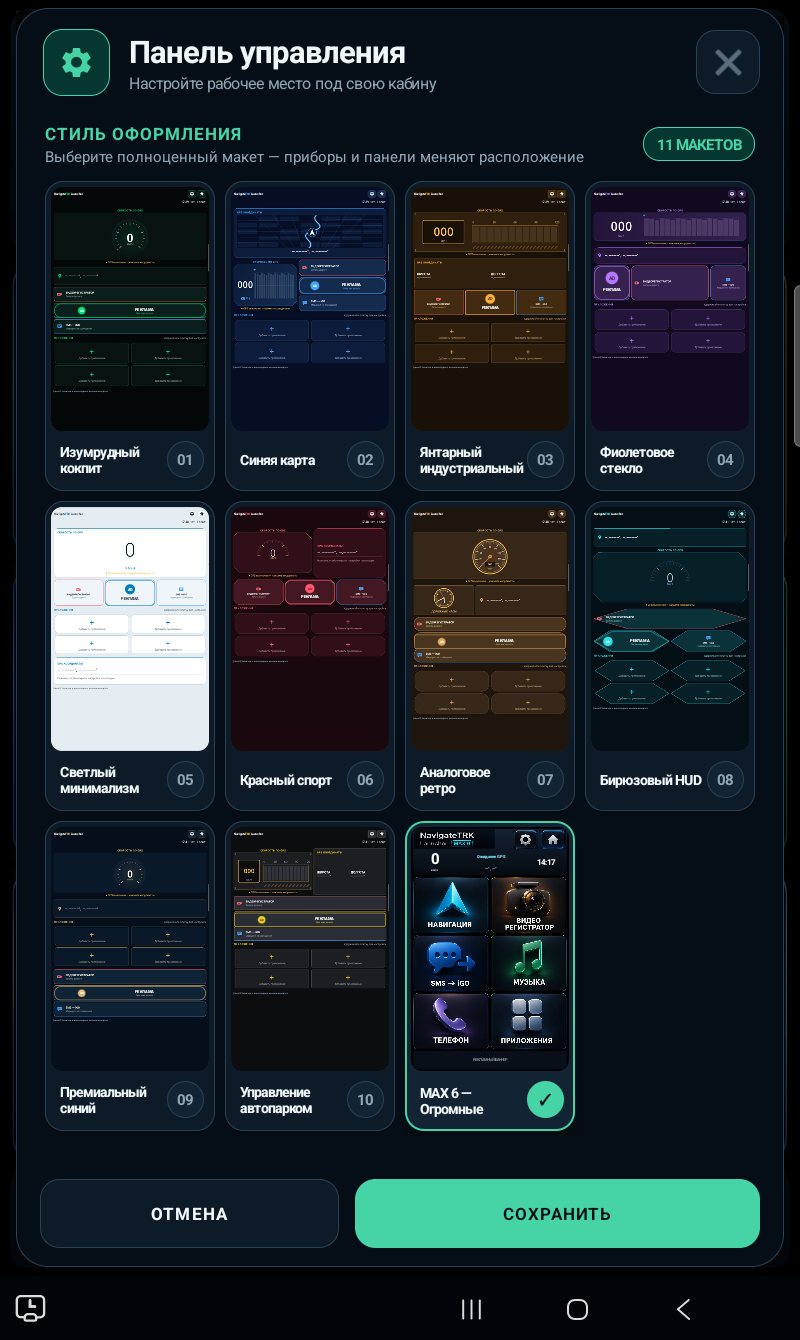
App screenshotAppearance picker with MAX 6 selected. Choose a layout and tap «СОХРАНИТЬ» (Save) at the bottom. Available styles vary by version; this capture shows the Russian interface.Enlarge screenshot ↗ Assign apps to tiles
Press and hold a configurable tile, choose an installed app and confirm the selection. A normal tap opens the assigned app. Reassign the tile if that app has been removed from the device.
Configure navigation shortcuts
Tap Navigation to open four separate navigator slots. Press and hold a slot to assign an app. Opening a navigator normally does not send it a route; SMS → iGO is a separate action.
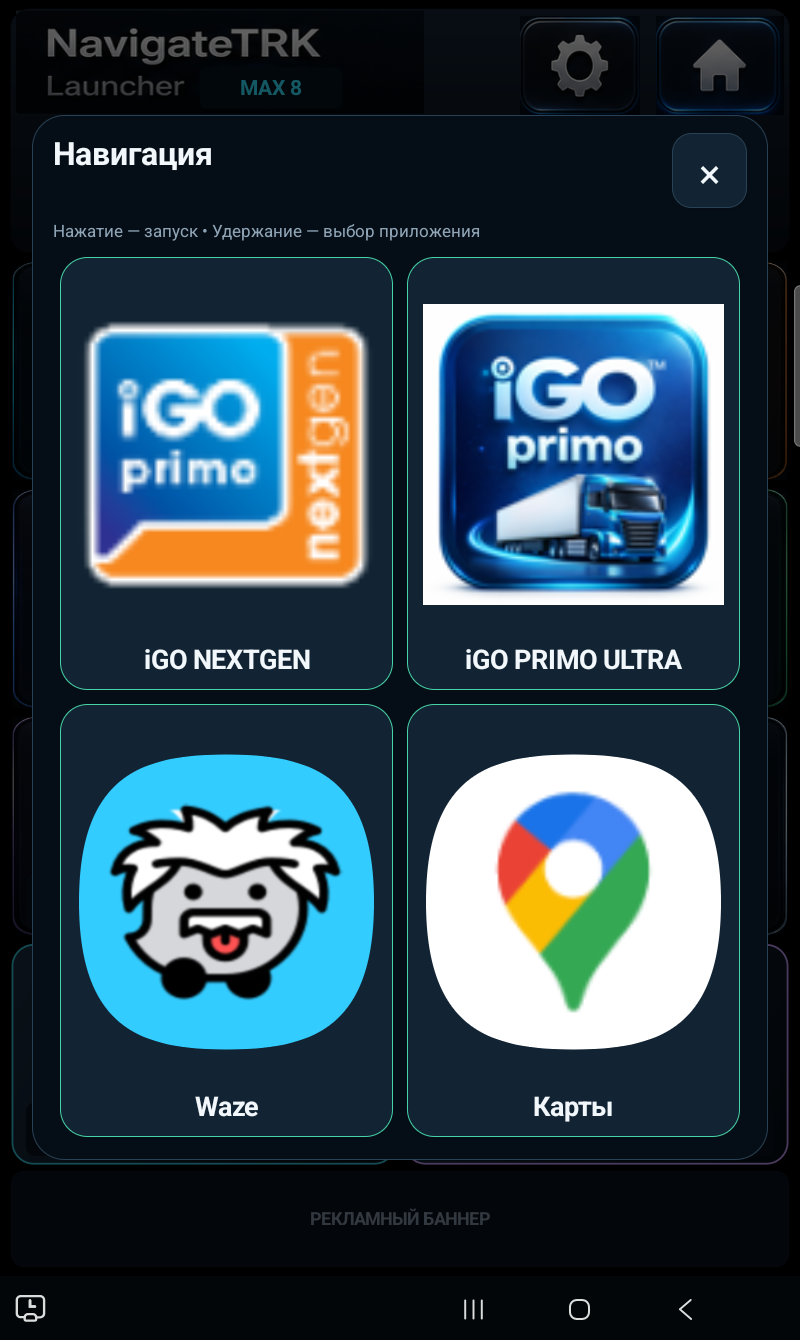
App screenshotThe «Навигация» (Navigation) panel has four slots. Hold a tile to choose an app; tap to launch it. Your assigned apps may differ. This capture shows the Russian interface.Enlarge screenshot ↗ Check the GPS instruments
Enable device location and allow precise location access for the launcher. Wait for a GPS fix. Zero speed while parked is normal; no GPS signal and zero speed are different states.
Optionally make it the default home screen
Choose the option to make the launcher default, then select NavigateTRK Launcher in Android’s system dialog. Test the Home button and check the tile layout in the screen orientation you intend to use.
Check the result
Tap each assigned tile and confirm it opens the intended app. Test the home screen before starting your journey.
Common questions
Can I restore my usual home screen?
Yes. Select your previous launcher in Android’s default home-app settings. The section name varies by device. NavigateTRK also includes a button for opening the system home screen.
Why won’t a tile open an app?
Check that the app is installed and can open independently. For a configurable tile, press and hold to assign it again. A dedicated dashcam button may require a compatible recording app.
Why allow precise location?
It is used for GPS speed and coordinates. Assigning and opening shortcuts does not itself provide a GPS fix.
Troubleshooting: symptom, check, next step
Change one setting at a time and repeat the same short test. This makes it easier to tell which change helped. Configure the device while parked.
A tile opens an old or different app
Open the intended app from Android’s app list to check its installation. Return to the launcher, hold the configurable tile and assign it again. Reinstalling an app may require updating an old assignment.
Home returns to a different screen
Check the default home app in Android settings. Labels depend on the manufacturer. If this choice is unavailable on a managed device, contact its administrator; assigning a tile does not change the system launcher.
Speed is zero while parked
This is normal if coordinates update and GPS is available. Do not start driving solely to test the reading. If coordinates are missing, check device location and precise-location permission, then test again in an open area.
Returning safely to the previous home screen
Before switching home screens, note the name of the original launcher. To restore it, select it in Android’s default-app settings and press Home. Keep the current launcher installed until you confirm another home screen is accessible.
Still need help?
Include device model, Android and launcher versions, layout, screen orientation and the app assigned to the affected tile. Remove personal notifications from screenshots.
Never send passwords, access codes or payment details.
Troubleshooting notes updated: 9 October 2026. Screens and labels may differ by app version.
Available layouts and some dedicated button actions can differ between versions. The launcher does not replace a navigation or recording app.
Photos and screens
 Enlarge
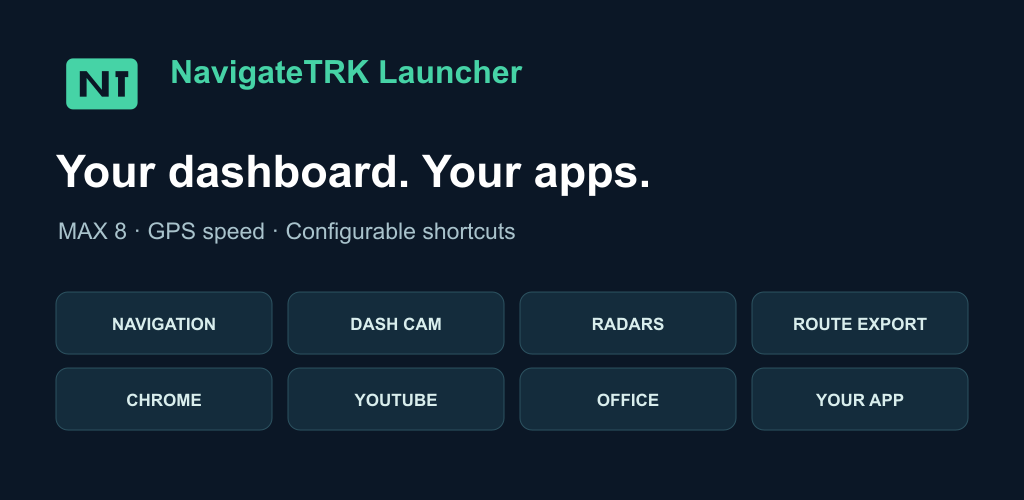
 Promotional graphic and a settings screenshot. The settings screen is in Russian; the interface may vary by app version.