Step-by-step guide · Android
How to use Android as a GPS dashcam
NavigateTRK Dashcam records your journey using an Android camera and saves GPS data. Start with a short test recording to check the picture, audio and coordinates.
Before you start
Mount the phone so its camera can see the road without obstructing your view. Check available storage and power. Complete the initial setup before driving.
Tablet recording · 32 sec · English captions · no audio
Quality, frame rate and clip length
Recorded in Car DVR 1.9.20 installed on the tablet: three recording-settings menus. This is an earlier version; current GPS settings differ. Road footage and background-recording tests are not part of this lesson. The app interface is Russian; the explanations are in English.
Open video in a new tab ↗Allow the features you need
Allow camera access on first launch. Audio recording needs microphone permission; turn audio recording off if you do not need sound. For coordinates, enable device location and allow precise location access.
Choose a folder and storage limit
Open settings and the storage/archive section. Choose a folder and grant access in the Android file picker. The default folder is Movies/CarDVR. Select a suitable storage limit and check available space.
Configure video clips
In recording settings, choose a clip length of 1, 2, 5 or 10 minutes, then select quality and frame rate. Available options depend on the camera. If the device gets hot or recording is unstable, try a lower quality setting and test again.
Choose a GPS mode
Enable location recording. One GPS request per clip saves fixed coordinates but does not display speed. Choose GPS updates every 5 seconds for speed and a changing route. This mode uses more battery and produces more heat.
Record a test clip
Press REC to start recording. To record with the screen off, review background settings and the app’s Unrestricted battery option. First check that recording continues on your device after you switch away from the app. Stop recording in the app or from its persistent notification.
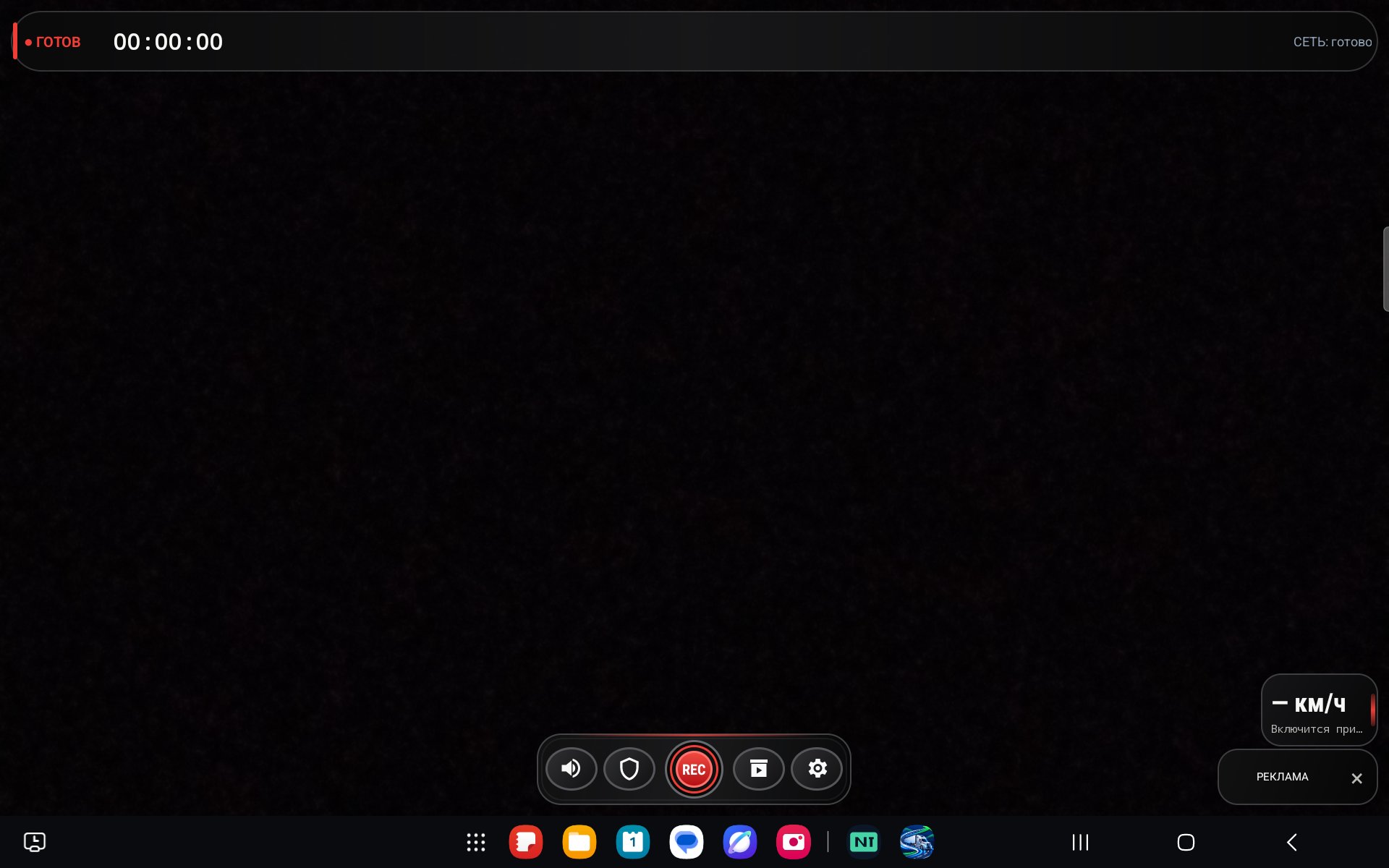
App screenshotThe red REC button at the bottom starts recording; archive and settings are to its right. This is an earlier Russian-language version with a dark camera preview, not sample driving footage. Current GPS indicators may differ.Enlarge screenshot ↗ Check the archive and protect important clips
Open the archive and play the saved clip. Check picture, audio, date and GPS data; speed requires the 5-second GPS mode. Protect recording marks an important clip with LOCKED_ so loop-recording cleanup will not delete it.
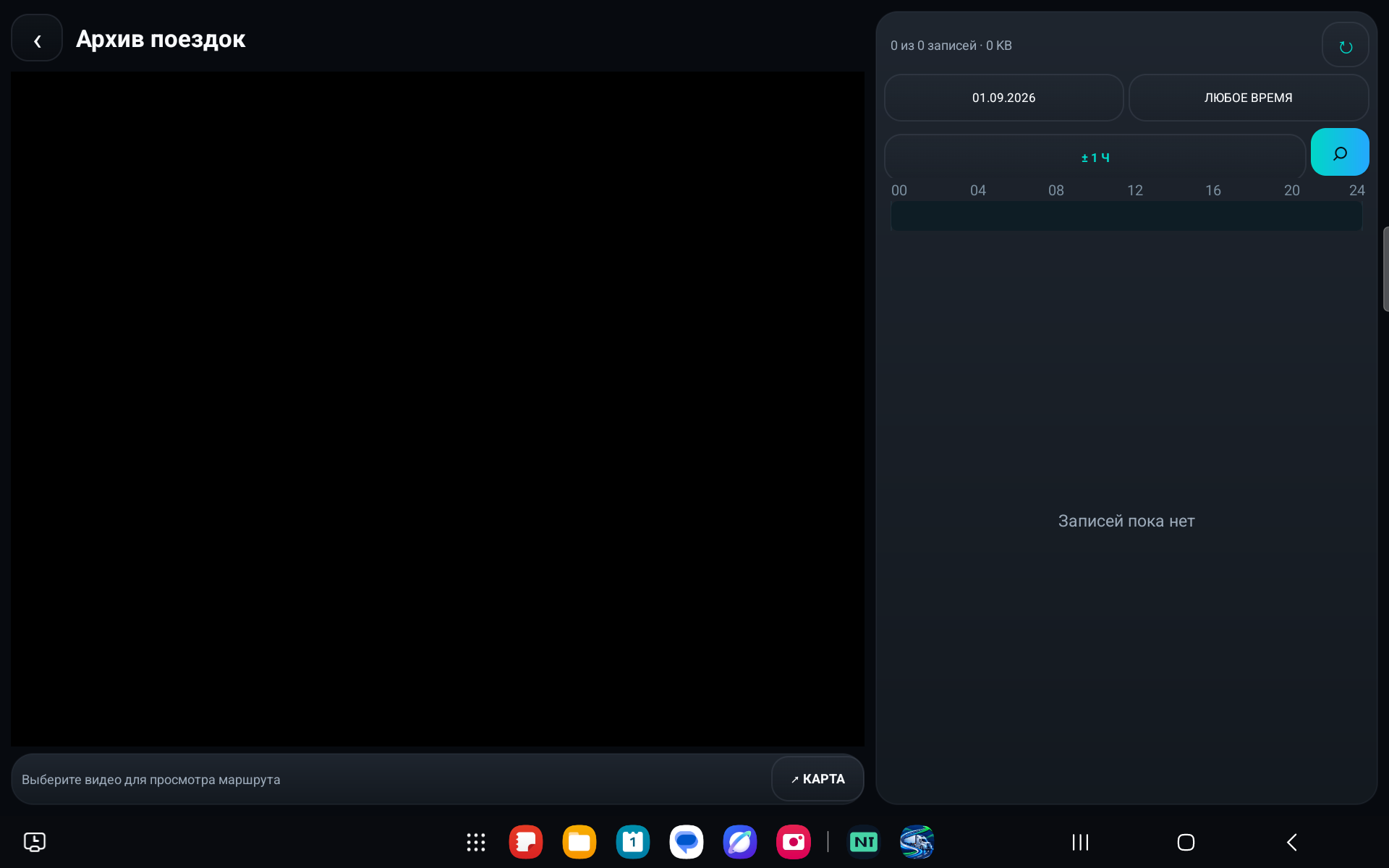
App screenshotArchive before the first recording: the list is empty. After your test, find the saved clip; check the date/time filter at the top if it is missing. Earlier version, Russian interface.Enlarge screenshot ↗
Check the result
Play the test clip in the archive and confirm that it actually contains the picture, sound and GPS data you need.
Common questions
Why is speed missing?
That is expected with one GPS request per clip. Select the 5-second GPS interval and wait for a precise GPS signal. Check the app’s precise-location permission if coordinates are also unavailable.
Why did recording stop when storage filled up?
Loop recording removes old unprotected clips. LOCKED_ files are retained; if protected files fill the limit, new recording can pause. Back up important clips and free space.
Why does background recording vary between phones?
Android manufacturers impose different limits on cameras and background processes. Check battery settings, notifications and the app’s diagnostics, then repeat a short recording test.
Troubleshooting: symptom, check, next step
Change one setting at a time and repeat the same short test. This makes it easier to tell which change helped. Configure the device while parked.
Black preview or camera will not start
Stop recording, close other camera apps and check Dashcam’s camera permission. Test the built-in Android camera. If that fails too, resolve the device issue first; do not rely on background recording without a successful test.
A file exists but the recording is incomplete
After stopping REC, let saving finish and play the clip from start to end. Repeat a short test in the selected folder. If it fails again, check free space and folder access. Keep the original until you have a backup.
Recording stops when the screen turns off
Compare two tests of equal length: one with the app open and one with the screen off. Review background and battery settings in the guide above. If only the second test fails, report that result together with your device model and Android version.
The phone gets hot while recording
Stop recording and let the device cool. Keep it out of direct sunlight. Then try lower quality and a short test. Stop if Android displays a temperature warning; continuous recording in that mode cannot be considered reliable.
Still need help?
Include device model, Android and Dashcam versions, video quality, clip duration, GPS mode, save folder and whether the screen was off. Send a short non-sensitive example rather than an entire journey with private conversations or other people’s data.
Never send passwords, access codes or payment details.
Troubleshooting notes updated: 9 October 2026. Screens and labels may differ by app version.
Quality, stabilisation, night recording and background reliability depend on the camera and device. The promotional media below does not replace testing your own recording.
Photos and screens
 Enlarge
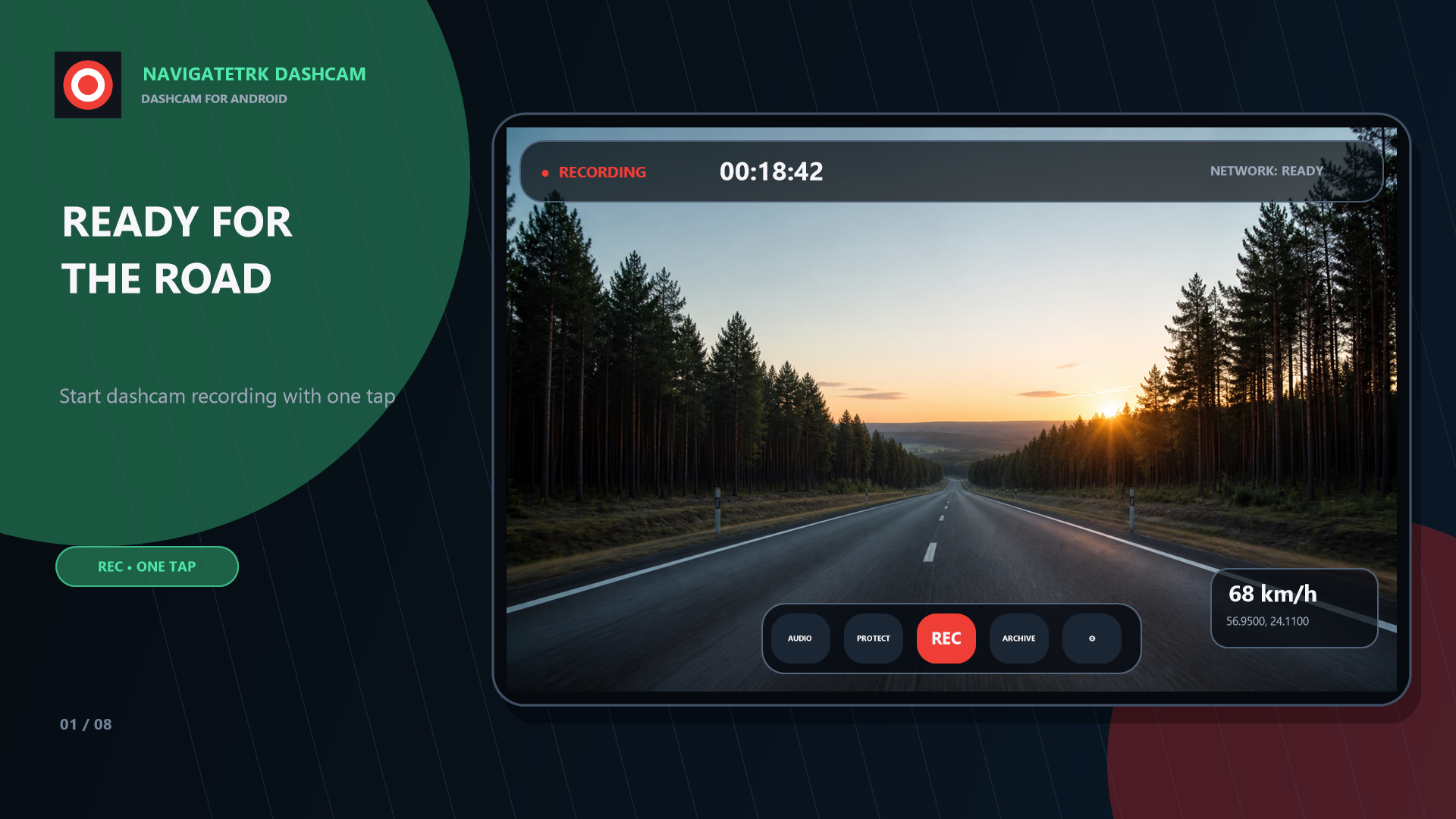
 Promotional interface demonstrations. Trips, dates and coordinates are fictional. Background recording, stabilization and low-light boost depend on the device and Android settings.