Step-by-step guide · Android
How to send message coordinates to iGO or Sygic
SMS Route to Navigation turns text containing coordinates into route points for a navigation app. Depending on the version, its in-app name may be Route Exporter, NavigateTRK Route Export or «Экспорт маршрута».
Before you start
Have the coordinate message ready and install the navigation app you intend to use. Automatic saving to iGO needs access to its userdata folder. Set up the route and verify the destination before driving.
Tablet recording · 32 sec · English captions · no audio
Parsing and checking two route points
Demo coordinates for two points in central Berlin: parsing text and reviewing the list. Recorded in Route Export 3.5-igo-primo-direct-test2, a test build with a test advertising banner. No personal messages are used. This video does not perform an iGO export. The app interface is Russian; the explanations are in English.
Open video in a new tab ↗Paste the message
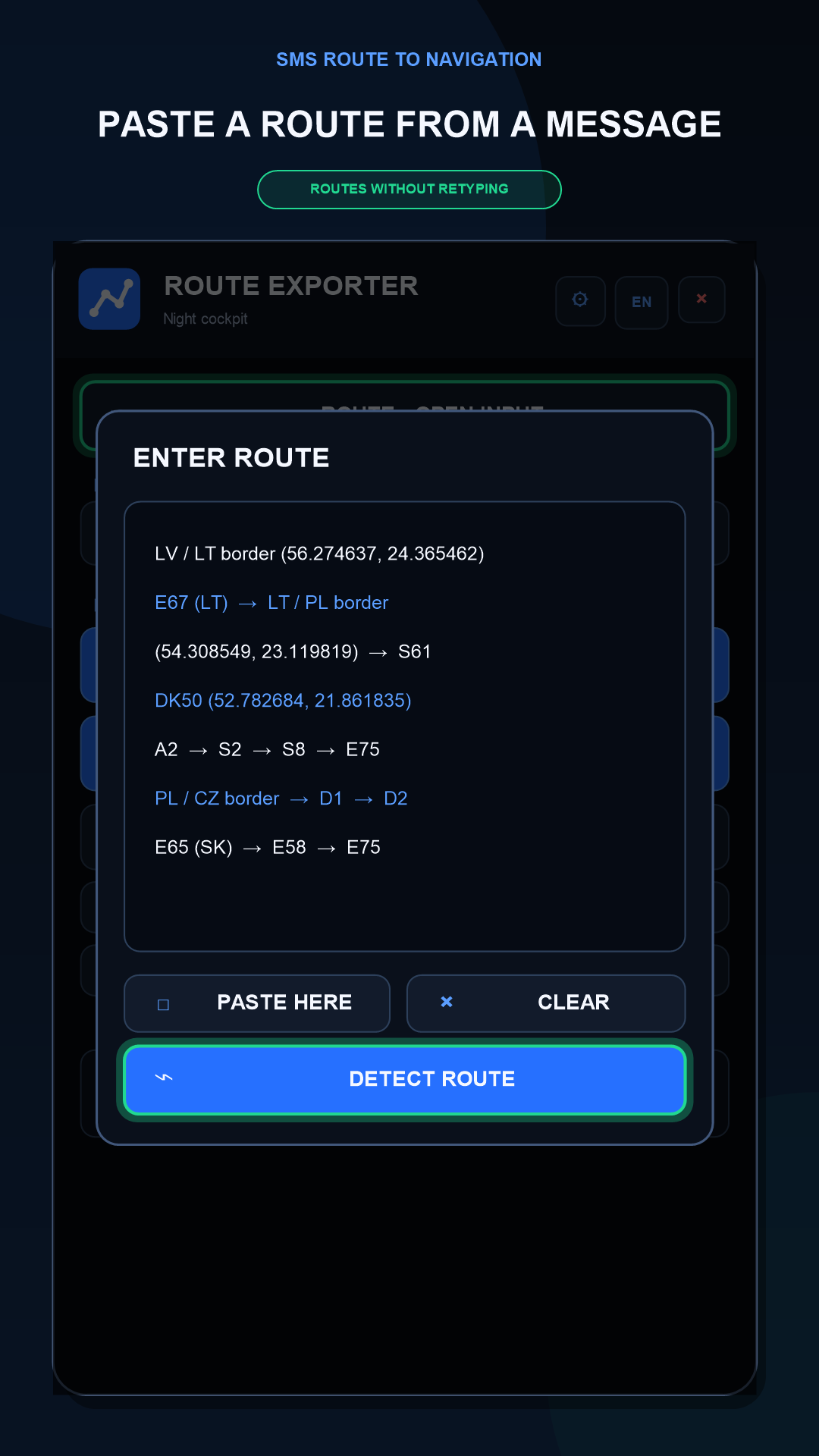
Copy the message, open the route input and use the paste action, or share the text through Android’s Share menu. Manual pasting does not need automatic access to your SMS messages.
Parse and review the points
Choose the parse-route action and open the list of recognised points. Compare their count, order, latitude and longitude with the original message. Correct any errors before exporting.
Select the folder for iGO
Open iGO settings and select iGO/content/userdata using the system file picker, then grant access. The app creates the route subfolder automatically. If necessary, select which installed iGO package to launch.
Save the route to iGO
Choose Save and open iGO. In iGO Primo, saved routes can be opened through My Route → More → Load Route; menus differ in other versions. If automatic saving is unavailable, save KML manually and import it using a compatible navigator version.
Choose GPX for Sygic
Instead of KML, choose Sygic Truck • GPX / Sygic GPX and save or share the resulting file. Use the route-import method available in your Sygic version to open it. Creating a GPX file does not mean the navigator has already accepted every stop.
Verify the route in your navigator
Check the destination, intermediate stops and their order inside iGO or Sygic. The navigator calculates the roads between points using its own maps and settings; exporting coordinates does not guarantee identical roads in different apps.
Check the result
Treat the export as complete only after checking the intended points and stop order in your chosen navigator.
Common questions
How do I send a route to another Android device over Bluetooth?
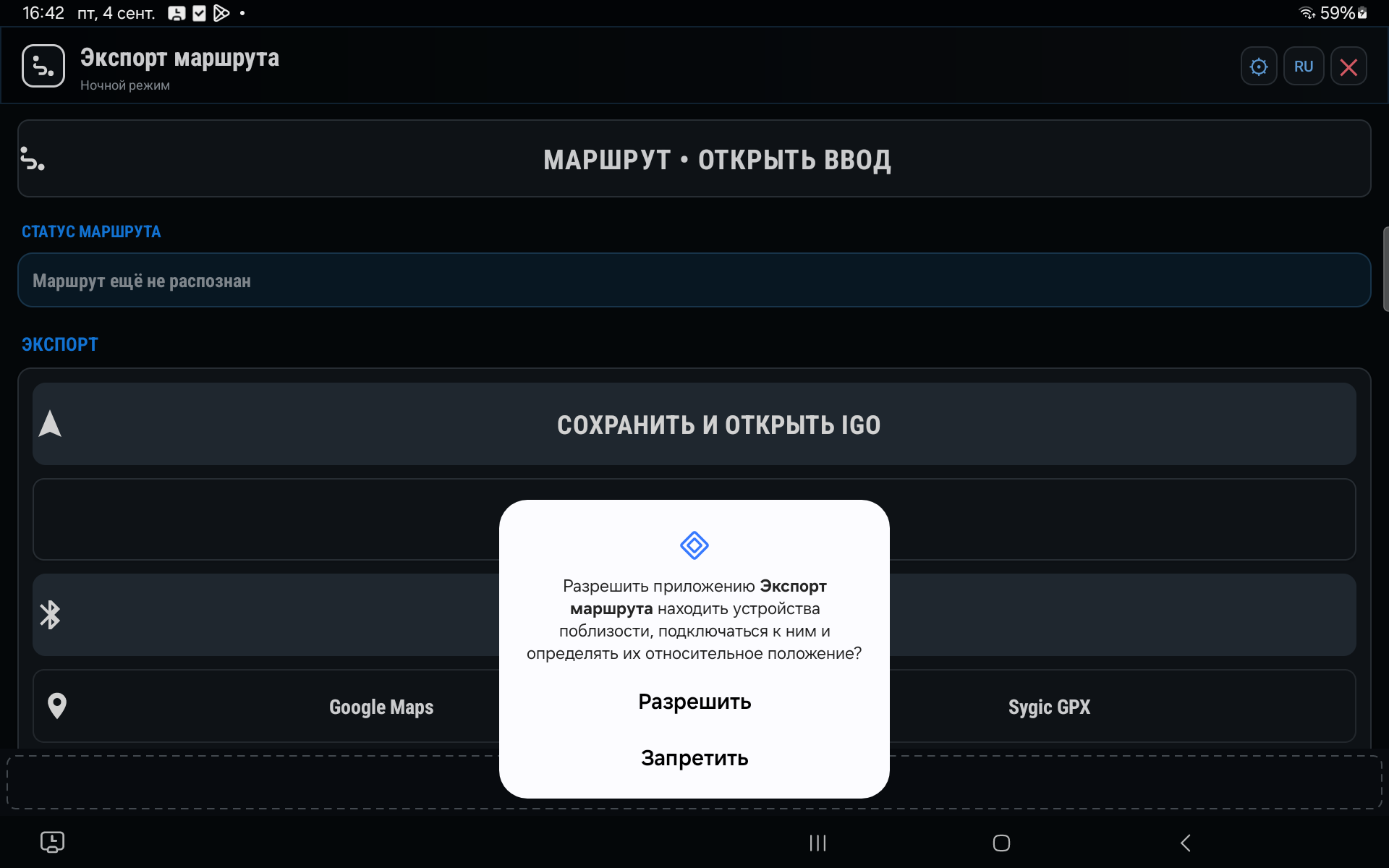
Install the app on both devices, enable Bluetooth and grant the requested permissions. Keep the app open on the receiving device. On the sender, choose route transfer and select the intended device. Check the receipt confirmation and point list.
Why can’t iGO find the saved route?
Check the selected userdata folder, write permission and the file inside the route subfolder. Make sure you are opening the iGO installation that uses that folder. Select the folder again if access has changed.
Do I need an internet connection?
Text parsing, file generation and Bluetooth transfer take place on the device. Maps, address search and road routing in a third-party navigator depend on its settings and downloaded data.
Troubleshooting: symptom, check, next step
Change one setting at a time and repeat the same short test. This makes it easier to tell which change helped. Configure the device while parked.
A point appears in another country
Compare latitude and longitude with the original message: they may be swapped or a minus sign may be missing. Latitude is within −90…90 and longitude within −180…180, but valid numbers can still identify the wrong address. Check the map location before exporting.
Fewer stops were recognised than expected
Compare every coordinate pair with the recognised list. If a line is ambiguous, ask the sender for a separate latitude/longitude pair for each stop. Successful file creation alone does not prove the text was parsed correctly.
The KML is saved but iGO cannot find it
Check access to the selected userdata folder and the file inside route. Compare its name and modification time to avoid loading an old route. Loading menus differ between iGO versions; without compatible import support, a file will not automatically appear in the route list.
The stop order changed after transfer
Open the stop list in the receiving navigator and compare it with the original message. Check the first, last and intermediate points. Correct the order before calculating the road if necessary; checking the destination alone is not enough.
Still need help?
Include exporter and navigator versions, KML or GPX format, transfer method and expected point count. Send an anonymised text example with customer names, phone numbers and addresses removed.
Never send passwords, access codes or payment details.
Troubleshooting notes updated: 9 October 2026. Screens and labels may differ by app version.
Import compatibility depends on the iGO or Sygic version. A separate test button for sending one point without KML is not the same as exporting a complete route.
Photos and screens
 Enlarge
 Promotional mockups based on the app interface, not screen recordings. An example route is shown. The original video may contain Russian in-app text.